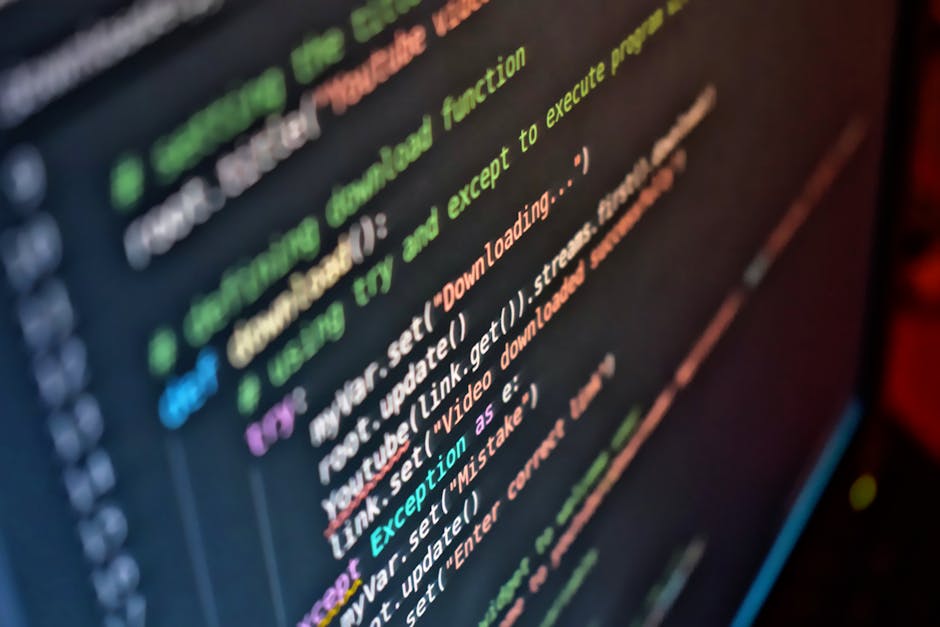
The Ultimate Metal Gear Solid Series Guide: Story, Characters, and Hidden Secrets

게이밍 컨트롤러 - 메탈기어 솔리드 시리즈

Today I want to talk about one of my all-time favorite game series: Metal Gear Solid. The moment I first played this game, I was absolutely blown away. It wasn’t just about killing enemies and clearing missions — it was like watching a movie with deep storytelling and philosophical messages. A legendary game that introduced stealth action to the world, and the masterpiece where Hideo Kojima’s artistic vision truly came together.

The Great Beginning: Birth of the Series and Snake’s First Appearance

The Metal Gear series started back in 1987. Released on MSX2, the original ‘Metal Gear’ introduced the revolutionary concept of ‘stealth’ and made waves in the gaming world. The protagonist Solid Snake infiltrates enemy territory to destroy the nuclear-armed bipedal tank ‘Metal Gear.’

But the real sensation came in 1998 with ‘Metal Gear Solid’ on PlayStation. The 3D graphics, cinematic direction, and stellar voice acting were nothing short of revolutionary. From this point, Metal Gear Solid became a cultural phenomenon that transcended gaming. I remember staying up all night playing it — those memories are still vivid.
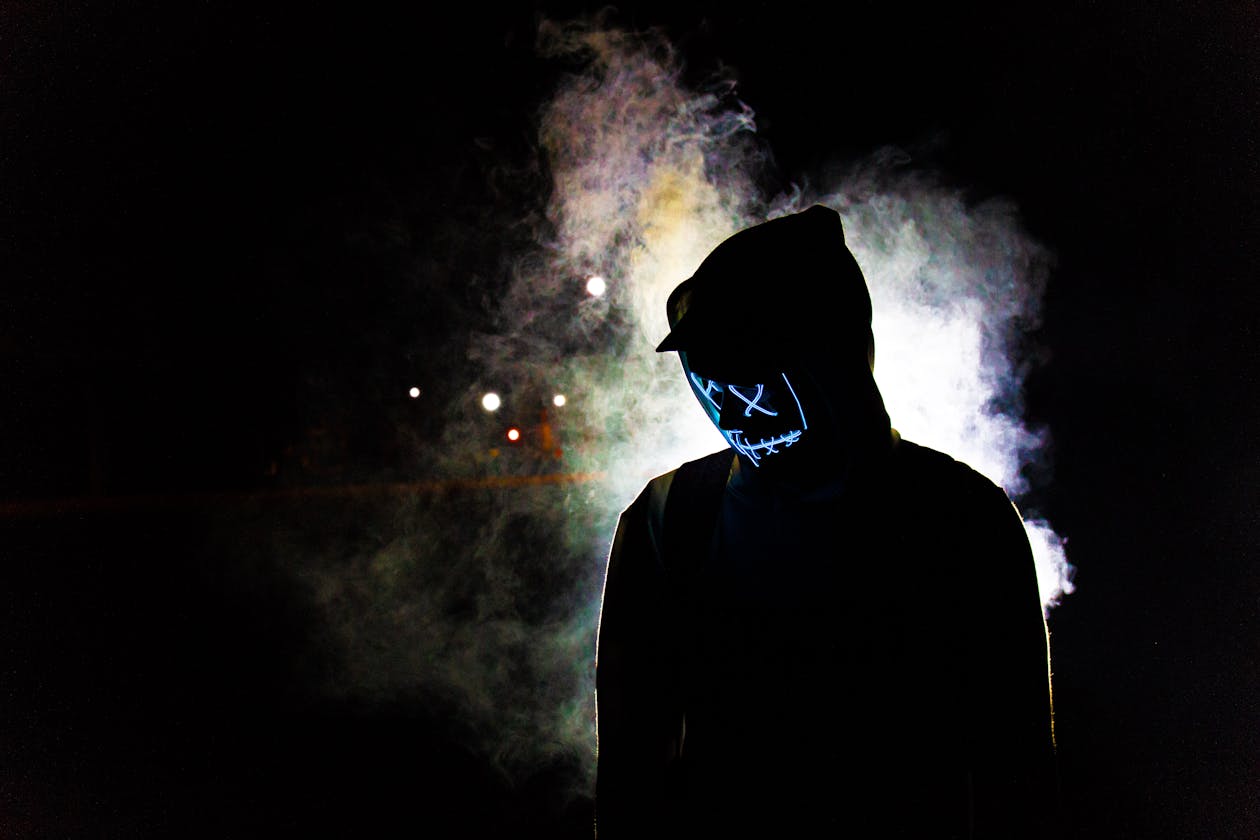
The essence of stealth action - shadow in the dark
Photo by Sebastiaan Stam / Pexels

Why Is the Metal Gear Solid Story So Complex? (Big Boss, Solid Snake, and The Patriots)

The Metal Gear Solid story is genuinely complex. First-timers often get headaches from the character relationships and timeline. But the hidden messages and plot twists within this complexity draw players deeper into the experience. The core characters are undoubtedly Big Boss, his clone Solid Snake, and the shadow organization ‘The Patriots’ pulling all the strings.

The early series follows Solid Snake as he destroys Metal Gears and confronts his father figure, Big Boss. The prequel ‘Metal Gear Solid 3: Snake Eater’ reveals how Big Boss became a legendary hero and the tragic past he endured. ‘Metal Gear Solid V: The Phantom Pain’ presents another side of Big Boss alongside profound questions about ‘identity’ and ‘truth’ that run through the entire series.

Unforgettable Characters Beyond Snake

The Metal Gear Solid series is packed with incredibly unique and charming characters, each with their own stories and philosophies:

  • Otacon (Hal Emmerich): Snake’s most reliable ally and genius scientist. Somewhat awkward but overflowing with human charm.
  • Meryl Silverburgh: A tough female soldier and Snake’s partner. Her romance(?) with Snake remains in many fans’ memories.
  • Raiden: First appeared as the controversial protagonist of MGS2, but reinvented himself as the ultimate cool character through ‘Metal Gear Rising: Revengeance.’ His cyborg ninja action was absolutely incredible!
  • The Boss: Big Boss’s mentor and legendary soldier. Her tragic fate and sacrifice form a crucial pillar of the entire series.

How Did Metal Gear Solid Become the Legend of Stealth Action?

Metal Gear Solid is practically the textbook of the stealth action genre. Avoiding enemy sightlines, minimizing noise, and using various tools and environments to complete missions — the gameplay is simply the best. Each entry in the series brought significant evolution:

  • MGS1 (PS1): The birth of 3D stealth action. Established core systems like radar, cardboard box hiding, and wall pressing.
  • MGS2: Sons of Liberty (PS2): Massive leap in graphics and direction. First-person aiming and environmental interaction expanded stealth freedom.
  • MGS3: Snake Eater (PS2): Set in the jungle with emphasis on camouflage and survival. Introduced food, healing systems, and CQC (Close Quarters Combat).
  • MGS4: Guns of the Patriots (PS3): Old Snake’s final story. Flexible gameplay letting you choose between stealth and combat across battlefields.
  • MGSV: The Phantom Pain (PS4/Xbox One): Open world system maximizing stealth freedom. Buddy system and Mother Base construction added RPG elements.

Jungle camouflage - Metal Gear Solid 3 Snake Eater vibes
Photo by Bao Menglong / Pexels

Beyond Entertainment: The Messages Metal Gear Solid Delivers

The Metal Gear Solid series goes beyond simple entertainment, asking us profound questions about war, nuclear weapons, genetic manipulation, information control, and the nature of ‘truth’ and ‘identity.’ Kojima’s unique direction and symbolic elements deliver these messages with incredible impact.

Metal Gear Solid carved its name into gaming history and inspired countless games that followed. It popularized the stealth action genre and elevated the standards of game storytelling and direction. For many fans, it’s not just a game — it’s a life-changing masterpiece.

The Legend Continues

Although the series seemed to end when Kojima left Konami, Metal Gear Solid lives on in the hearts of countless fans. The recent announcement of ‘Metal Gear Solid Delta: Snake Eater’ remake has fans excited once again. Which Metal Gear Solid game is your favorite? What are your Metal Gear memories? Share in the comments!
Even a Code-Illiterate Built It! Home Server Journey (7) — Making the Server Work on Its Own with n8n

In the previous six episodes, I set up photo backup (Immich), an AI assistant (OpenClaw), local AI (Ollama), and a blog (WordPress) on my home server. Each service runs great on its own. But managing them all by hand? Honestly, it gets old fast.

“I just want to set it up once and have it run itself.”

That’s why I installed n8n. After setting up a few workflows, my server now works on its own. All I do is check Telegram notifications.

IT, 간판, 개념의 무료 스톡 사진
Photo by RealToughCandy.com / Pexels

What is n8n? One-Line Summary: Free Zapier

n8n (pronounced “n-eight-n”) is a visual automation tool. If you’ve used Zapier or Make (formerly Integromat), it’s exactly that. Drag blocks onto a canvas, connect them with lines, and your automation is done. Code? Not a single line needed.

The one difference: it runs on your own server. That means it’s free, there are no execution limits, and your data never leaves your machine.

Zapier n8n (Self-hosted)
Price From $19.99/month Free
Execution limit 100-750/month Unlimited
Your data Stored on Zapier’s servers Stays on your server
Integrations 7,000+ 400+ (all major services covered)
UI Very easy Easy (slight learning curve)

If you already have a home server, there’s no reason not to use n8n. Especially if you’ve ever hit Zapier’s free tier limit of 100 executions per month.

Installing n8n: One Docker Compose File

Remember how we set up Docker in Episode 1? We just add n8n on top of that.

services:
  n8n:
    image: n8nio/n8n:latest
    ports:
      - "5678:5678"
    volumes:
      - ./data:/home/node/.n8n
    environment:
      - N8N_BASIC_AUTH_ACTIVE=true
      - N8N_BASIC_AUTH_USER=admin
      - N8N_BASIC_AUTH_PASSWORD=yourpassword
    restart: unless-stopped

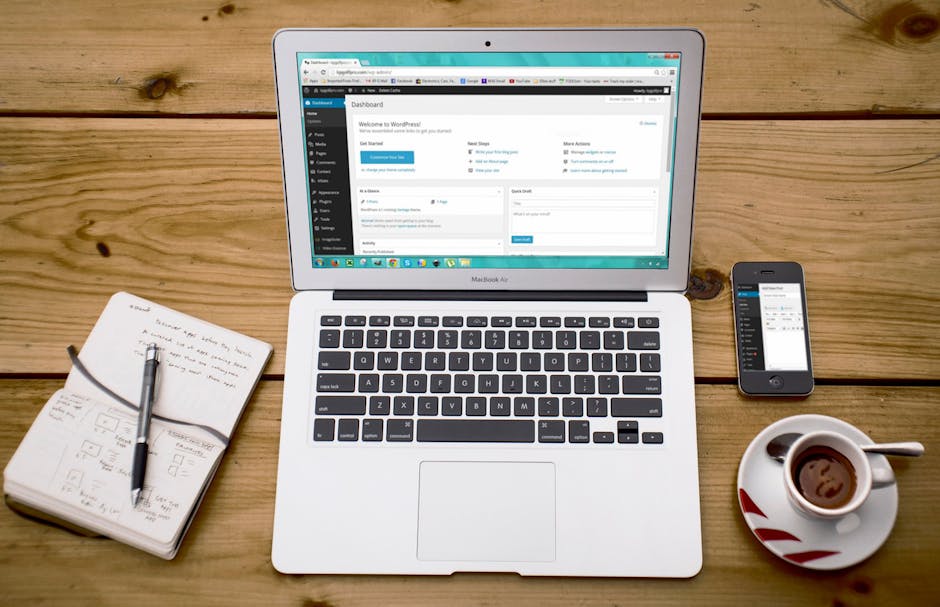
Tell Claude “install n8n” and it creates this file and runs docker compose up -d for you. Navigate to http://yourServerIP:5678 and you’ll see this:

CSS, HTML, IT의 무료 스톡 사진
Photo by Godfrey Atima / Pexels

At first glance it might look intimidating. But give it five minutes. You drag nodes (blocks) from the left panel onto the canvas and connect them with lines. It’s like building with LEGO.

Real Workflow #1 — Auto-Sync Dev Logs to Notion

I’m building an app called PRSM. (A non-coder building an app? Yep, I just tell AI what to do. That’s a story for another post.) Every day I write development progress in a file on GitHub. I wanted those logs copied to Notion automatically.

Doing it manually:

  1. Open GitHub
  2. Find today’s log file
  3. Copy the content
  4. Open Notion
  5. Paste into the Day Log page
  6. Add a date tag

Five minutes a day. Doesn’t sound like much, but that’s two and a half hours a month. And honestly, I forget to do it most days.

After automating with n8n:

Every night at 11 PM → Read file from GitHub → Auto-add to Notion Day Log

Three nodes. Set it up once, and it runs every night by itself. What I have to do: nothing. When I open Notion in the morning, last night’s log is neatly organized and waiting for me.

Real Workflow #2 — Auto-Monitor Blog Google Indexing

No matter how good your blog post is, if Google hasn’t indexed it, nobody can find it through search. This is especially brutal for new blogs — it’s common for posts to go unindexed for days after publishing.

Checking manually? You’d have to log into Google Search Console and inspect each URL one by one. Ten posts means ten checks.

n8n handles it:

Every 12 hours → Get list of published post URLs → Check Google indexing status → Unindexed post found? → Send Telegram alert

“Hey boss, episodes 3 and 5 still aren’t indexed on Google!” — I get alerts like this on Telegram. Then I just click “Request Indexing” in Search Console. Done.

Real Workflow #3 — Instant Alert When Server Goes Down

When you’re running multiple services on a home server, one of them can quietly die without you noticing. Once, Immich crashed after an update and I didn’t realize for over a day. That was a full day of photos not being backed up.

So I built this workflow:

Periodic check → Ping Immich → Ping OpenClaw → Ping WordPress → Any service down? → Send Telegram alert

Now when a service goes down, I get notified within minutes. After setting up this workflow, Immich actually crashed again. This time I caught it in 10 minutes and fixed it immediately. Because n8n is watching 24/7.

Real Workflow #4 — Morning Briefing Data Prep

Remember the morning briefing from Episode 5? My AI assistant sends me weather, news, gold prices, and my schedule via Telegram every morning at 7 AM.

To create that briefing, the AI needs data. Calling weather APIs, fetching exchange rates, checking the calendar — n8n handles all this data collection automatically at 6:50 AM every morning. At 7 AM, the AI picks up the data, summarizes it, and shoots it to Telegram.

My morning routine: Wake up, open Telegram, check today’s weather and news. That’s it.

Before and After Automation

Task Before After
Dev log Notion sync 5 min/day, often forgot Automatic (0 min)
Blog index check Manual search, too lazy so never did it Auto every 12h, just check alerts
Server status check Only knew when something broke Instant alert on failure
Morning briefing Manually search news Just check Telegram

Saving time is great, but the real benefit is peace of mind. “Is the server okay?”, “Did that post get indexed?”, “Did I sync the logs?” — I don’t worry about any of this anymore. n8n is watching over everything.

n8n Self-Hosting Cost Breakdown

Let’s crunch the numbers.

Item Using Zapier n8n Self-hosted
Monthly subscription $19.99 $0
Annual cost ~$240 $0
Extra electricity None Negligible (server already runs 24/7)

n8n is lightweight and barely uses any server resources. Compared to Immich or Ollama, it’s practically invisible. Since the server is already running around the clock, the additional electricity cost is effectively zero.

Tips for Beginners

It’s all great, but let me be honest about a few things to watch out for.

  • Name your workflows clearly. If you leave them as “My Workflow 1” and “New Workflow,” you won’t know what’s what once you have more than ten. Use specific names like “PRSM to Notion Sync” or “Server Health Check.”
  • Always add error notification nodes. When an API is temporarily down or a service changes, your workflow will fail silently. Connect a Telegram notification node at the end to catch errors — you’ll sleep better at night.
  • Block external access. n8n stores sensitive information like Notion tokens and GitHub tokens. Make sure to block external access with a firewall. I locked everything down with iptables back in Episode 1.

What’s Next

Now that the server runs itself with automation, it’s time to build features that are directly useful for real work.

In the next episode:

  • Auto-transcribe phone calls — hang up and the text is ready
  • AI-generated meeting notes — Google Meet and Zoom meetings summarized by AI
  • Whisper — OpenAI’s speech recognition AI, running free on your own server
  • How a single phone call becomes a work record in a manufacturing environment

A non-coder who built an AI assistant, now building an AI transcriber. Stay tuned.

This post was written by AI (Claude Code) and reviewed by a code-illiterate human.

2026 F1 Chinese GP: Russell Takes Sprint Pole! Mercedes 1-2, Ferrari’s Upside-Down Wing Controversy, Red Bull in Crisis

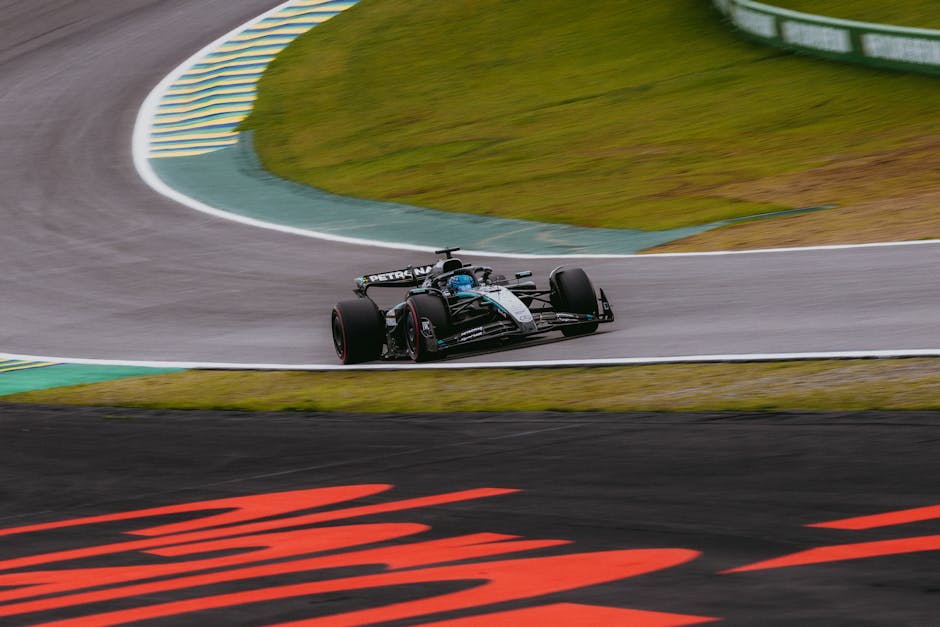
상파울루의 인터라구스 서킷을 질주하는 포뮬러 1 경주용 자동차의 역동적인 모습.

Mercedes Unstoppable in Shanghai

Fresh off a dominant season opener in Melbourne, Mercedes carried their momentum to Shanghai with devastating effect. George Russell topped every single session from FP1 through Sprint Qualifying, proving once again that the 2026 regulations have been cracked wide open by the Silver Arrows.

FP1 Results: Mercedes 1-2, Gap Already Clear

In Friday’s sole practice session, Russell set the pace with a 1:32.741, with teammate Kimi Antonelli just 0.12s behind in P2. McLaren’s Norris (+0.555s) and Piastri (+0.731s) took P3-4, while Ferrari’s Leclerc (+0.858s) and Hamilton (+1.388s) could only manage P5-6.

The real shock was Red Bull. Max Verstappen languished in P8 (+1.8s), signaling trouble from the very first session. Haas’s Oliver Bearman outqualified both Red Bulls from P7.

Sprint Qualifying: Full Results

Russell clinched his first career Sprint pole with a 1:31.520 in SQ3. Antonelli completed the Mercedes front-row lockout, 0.289s adrift.

Pos Driver Team SQ3 Time
1 George Russell Mercedes 1:31.520
2 Kimi Antonelli Mercedes 1:31.809
3 Lando Norris McLaren 1:32.141
4 Lewis Hamilton Ferrari 1:32.161
5 Oscar Piastri McLaren 1:32.224
6 Charles Leclerc Ferrari 1:32.528
7 Pierre Gasly Alpine 1:32.888
8 Max Verstappen Red Bull 1:33.254
9 Oliver Bearman Haas 1:33.409
10 Isack Hadjar Red Bull 1:33.723

P11+: Hulkenberg (Audi), Ocon (Haas), Lawson (Racing Bulls), Bortoleto (Audi), Lindblad (Racing Bulls), Colapinto (Alpine), Sainz (Williams), Albon (Williams), Alonso (Aston Martin), Stroll (Aston Martin), Bottas (Cadillac).

Key Takeaways

1. Mercedes: A New Era of Dominance

Mercedes have built a clearly superior machine under the 2026 regulations. Russell’s pole was described as “profoundly routine” — topping every session at two consecutive circuits isn’t track-specific advantage, it’s fundamental package superiority. The 0.289s gap to Antonelli only reinforces the team’s overall pace.

2. McLaren’s Melbourne Redemption

After being “embarrassed by Ferrari” in Australia, McLaren bounced back dramatically in Shanghai. Norris and Piastri finished within a tenth of each other in P3-5, showcasing impressive team consistency. The gap to Mercedes (~0.6s) remains significant, but they’ve reclaimed “best of the rest” status.

3. Ferrari’s Upside-Down Wing Saga

The weekend’s biggest technical talking point was Ferrari’s radical “upside-down” rear wing. First spotted during pre-season testing, this innovative design appeared to rotate roughly 225 degrees compared to a conventional wing, designed specifically for Shanghai’s long straights.

The FIA cleared the design as legal, but after Friday practice, Ferrari shelved it for the rest of the weekend. Hamilton called the debut “a little bit premature” on team radio while joking that it should be nicknamed the “flip-flop wing.”

Leclerc, who could only manage P6, reportedly raged on team radio about strategy issues. His growing gap to Hamilton (P4) added to Ferrari’s internal tensions.

4. Red Bull’s Downward Spiral

The team that dominated through 2024 is struggling badly under the new regulations. Verstappen reported drivetrain problems including poor gear shifts and excessive rear wheel power delivery, nearly spinning at the Turn 16 exit. P8 is nothing short of a nightmare by his standards.

Rookie teammate Isack Hadjar fared even worse in P10, posting slower times in SQ3 than SQ2 — a sign the entire team is fighting the car.

5. Alpine’s Rise & Haas Surprise

Gasly claimed P7 as “best of the rest,” with Alpine benefiting from Shanghai’s medium/low-speed layout after struggling at Melbourne’s high-speed circuit. Bearman (P9) splitting both Red Bulls was an impressive showing for Haas.

Technical Change: Power Unit Recharge Limit Raised

The FIA increased the power unit energy recharge limit starting from the Chinese GP, responding to energy management issues some teams faced in Australia. This allows drivers to generate more electrical energy, potentially reshaping strategies for both the Sprint and main race.

Weekend Schedule

  • Sprint Race: March 14 (Sat) — 19 laps
  • Qualifying: March 14 (Sat)
  • Race: March 15 (Sun) — 56 laps

Can Russell convert his Sprint pole into victory? Will Verstappen’s Red Bull find any answers? Is Ferrari’s upside-down wing a glimpse of the future or a dead end? Shanghai’s weekend is far from over!

Nintendo Switch 2 vs. Switch 1 Battery Enhanced: Is it Worth Buying Now? Specs, Games, & Compatibility

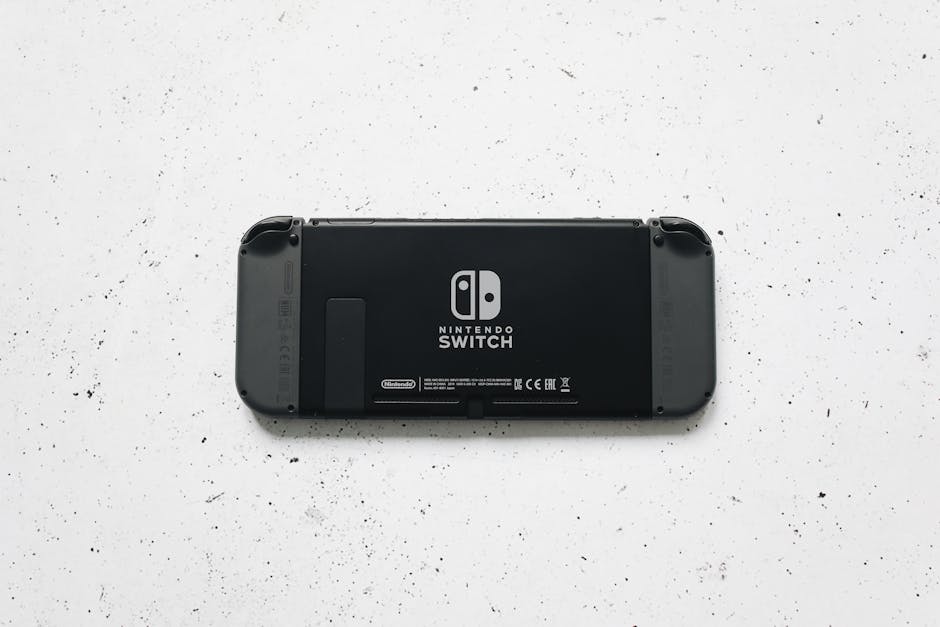
가젯, 개인 전자제품, 검은색 콘솔의 무료 스톡 사진

Why I Bought a Nintendo Switch 1 Battery Enhanced Model When the Switch 2 is Out

Recently, I purchased a used Nintendo Switch 1 Battery Enhanced Model (HAC-001(-01)) from a local marketplace. I bought it to play with my child. I was aware that the Nintendo Switch 2 had already been announced. Nevertheless, there is a reason why I specifically chose the Switch 1.

In the past, I was also a hardcore gamer. I would play games all night, and if a new console came out, I would buy it without hesitation. But now it is different. Although I still love games, I hardly have any time to play due to my busy daily life. In this situation, many people must be contemplating between the Switch 2 and the Switch 1. I will honestly discuss why I chose the Switch 1 and what judgment should be made at this point in time.

A joyful family moment as mother and daughters play video games together on the couch.
Photo by Tiger Lily / Pexels

Why I Chose the Battery Enhanced Model

There are three versions of the Nintendo Switch 1: the original model (HAC-001), the Battery Enhanced model (HAC-001(-01)), and the OLED model (HEG-001). I chose the Battery Enhanced model for simple reasons.

First, price. The OLED model still sells for around $200-250 used, but the Battery Enhanced model can be found for $100-150. Since I was buying it to play with my kid, there was no need for the top-tier model.

Second, battery life. The original model only lasts 2.5-6.5 hours in handheld mode, but the Battery Enhanced model offers 4.5-9 hours. Being able to take it out without worrying about charging when going out with my child is a huge advantage.

Third, game compatibility. All three Switch 1 versions share the same game library. Whether it is the OLED or Battery Enhanced model, the playable games are identical. Apart from a slightly larger and nicer screen, there is practically no difference.

Gaming with Kids Changes Everything

During my hardcore gaming days, graphics, frame rates, and loading speeds were everything. But when you play games with your child, the criteria completely change. What matters is can we play together?

Nintendo first-party titles like Mario Kart 8 Deluxe, Super Mario Bros. Wonder, and Animal Crossing let you split the Joy-Cons and immediately start two-player mode. No need to buy additional controllers, and the setup is simple. Even a five-year-old can enjoy Mario Kart within 10 minutes of being handed a Joy-Con.

This local multiplayer experience is hard to find on PS5 or Xbox. Sure, it exists, but games designed to be as family-friendly as Nintendo games are rare.

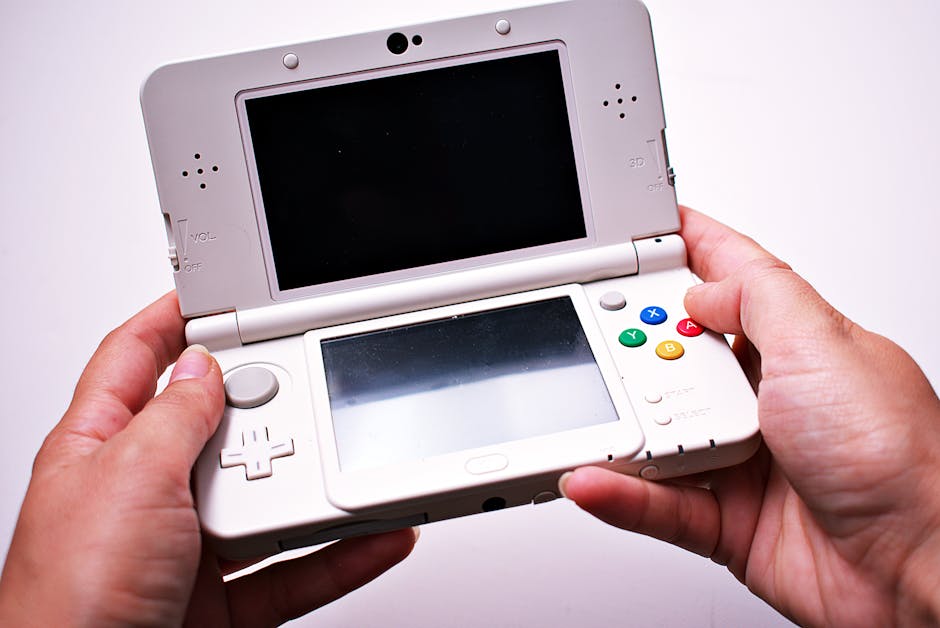
Close-up of hands holding a white portable gaming console.
Photo by Pixabay / Pexels

What is New with the Nintendo Switch 2?

The Nintendo Switch 2 was officially announced in June 2025. Significant upgrades were made over its predecessor. Here is a summary of the key changes.

Hardware Specs Comparison

Feature Switch 1 Battery Enhanced Switch 2
Display 6.2 inch LCD (720p) 7.9 inch LCD (1080p)
Processor NVIDIA Tegra X1+ NVIDIA T239 (Custom)
RAM 4GB 12GB
Storage 32GB 256GB
Docked Output 1080p 4K (max)
Battery 4.5-9 hours About 2-5 hours (estimated)
Price $100-150 (used) About $400-450 (expected)

Looking at numbers alone, the Switch 2 is overwhelming. Bigger screen, more powerful processor, and 8 times the storage. With 4K output support, there will definitely be a noticeable difference when connected to a TV.

Joy-Con Changes

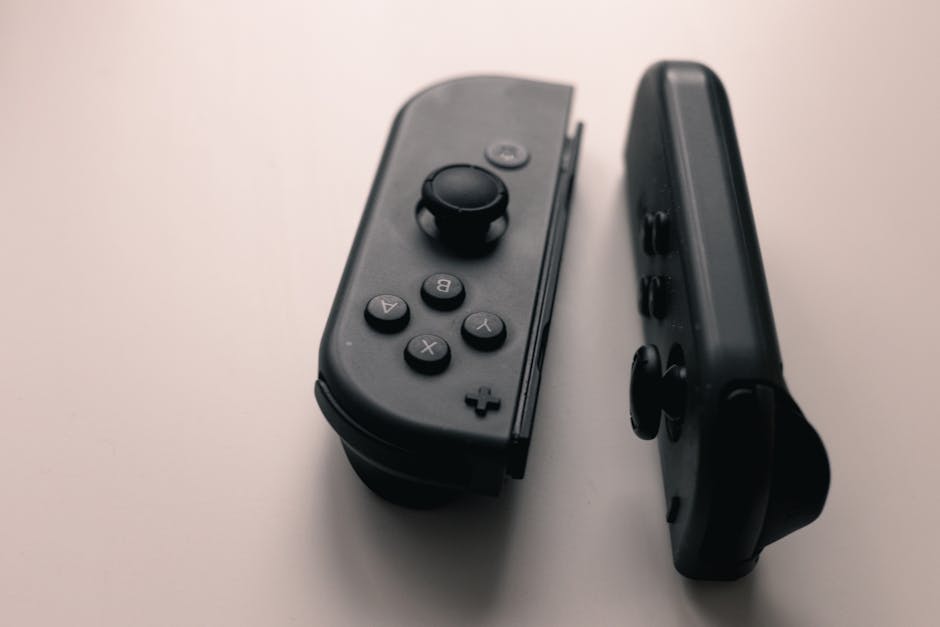
The Switch 2 Joy-Cons attach to the console magnetically. Detachment is much smoother than the old rail system, and they feature built-in optical sensors that allow mouse-like control. The adoption of Hall effect sensors to address joystick drift is also noteworthy.

Backward Compatibility

Nintendo announced that the Switch 2 is backward compatible with most Switch 1 games. Both physical cartridges and digital purchases can be played as-is. However, some games may not be compatible, and the official compatibility list can be checked on Nintendo website.

This backward compatibility tells us something in reverse: the Switch 1 game library is that massive and excellent. Zelda, Mario, Pokemon, Splatoon, Animal Crossing, and thousands of proven games are available to enjoy right now.

So, Was Buying a Switch 1 a Mistake?

To answer directly: absolutely not.

From a Value Perspective

The price difference between a new Switch 2 and a used Switch 1 Battery Enhanced is about $250-300. That is enough to buy 5-7 game cartridges. If your goal, like mine, is casual gaming with your child, investing in more games rather than a more expensive console is far more sensible.

I actually got the Switch 1 Battery Enhanced with Mario Kart 8 Deluxe and Pokemon Legends: Arceus for under $150 total from a local marketplace. Just the Switch 2 console alone costs more than double that.

From a Practical Use Perspective

Honestly, it is difficult to distinguish between 720p and 1080p on a 6-8 inch screen. You might notice the difference when connected to a TV, but for those who primarily use handheld mode, the perceived difference is minimal.

Battery life might actually be better on the Switch 1 Battery Enhanced. The Switch 2 increased performance comes with higher power consumption. For going out without a power bank, the Battery Enhanced model is more practical.

The same goes for games. There are not many Switch 2 exclusive titles yet. That is always the case at launch. Meanwhile, the Switch 1 has a game library built over 8+ years. Having access to hundreds of masterpieces right now is an enormous advantage.

gaming controller setup
Photo by Pexels

From a Parent Perspective

Young children do not care about graphics quality. When Mario moves and the character they control responds, that is more than enough excitement. There probably is not a five-year-old who can tell the difference between 4K and 720p.

What actually matters is durability. Things children use get dropped, thrown, and drooled on. A $150 used device gives much more peace of mind than a $400 new one. If a Joy-Con breaks, just buy another used one.

Should I Buy a Nintendo Switch 2 or Not?

So who is the Switch 2 really for? Let me break it down by situation.

You Should Buy a Switch 2 If:

  • You do not have a Switch at all: If you are new to Nintendo, the latest model makes sense. It is backward compatible anyway.
  • You want the latest exclusive titles: If you want to play Switch 2 exclusives (Metroid Prime 4, new Mario Kart, etc.), there is only one choice.
  • You primarily use TV mode: 4K output shines on big screens. If you mostly play docked, you will feel the upgrade.
  • You play a lot of online multiplayer: Improved Wi-Fi and networking features enhance the online gaming experience.

The Switch 1 Battery Enhanced is Right If:

  • You are a parent wanting casual gaming with kids: Like me. Great value, low stress if damaged, plenty of games.
  • You are a student or casual gamer on a budget: You can start with console + 2-3 games for under $150.
  • You primarily use handheld mode: The long battery life is a genuine advantage. No charging worries during commutes, travel, or waiting times.
  • You are new to Nintendo games: This is the perfect opportunity to enjoy 8 years of masterpieces at low cost. You can always upgrade to Switch 2 later.

Tips for Buying Used

There are a few things to check when buying used:

  1. Check the serial number: Battery Enhanced models start with XKW. If it starts with XAW, it is the older model.
  2. Joy-Con drift: Check if characters move on screen when you are not touching the joystick. Drift means additional replacement costs.
  3. Screen condition: Check the LCD panel for burn-in or brightness unevenness.
  4. Battery health: Heavily used devices may have degraded batteries. Ask the seller about actual usage time after a full charge.
  5. Custom firmware (CFW): Modified devices may be banned from online services. Verify that the Nintendo eShop works properly.

Conclusion

The Nintendo Switch 2 is undeniably a better device. It is faster, prettier, and more capable. But better does not always mean more suitable.

I simply wanted to laugh with my child while playing Mario Kart. For that purpose, a used Battery Enhanced model was the perfect choice. The money saved on the console went toward buying more games, and I do not stress when my kid handles it roughly.

Chasing the latest hardware is exciting, but sometimes choosing what is right for me now is the wiser purchase. The Switch 1 Battery Enhanced is still an excellent gaming device in 2026. A massive game library, proven hardware, and an affordable price. Not many devices offer all three simultaneously.

If you are like me and looking to start gaming with your child, I recommend a used Switch 1 Battery Enhanced. And later, when your child is older and enough Switch 2 exclusive games have accumulated, upgrading then will not be too late at all.

Gaming is ultimately about the value of time spent together. No matter what device you play on, if you can hear your child laughter, that is the best choice.

Even a Code-Illiterate Built It! Home Server Journey (5) — OpenClaw: One Week Honest Review

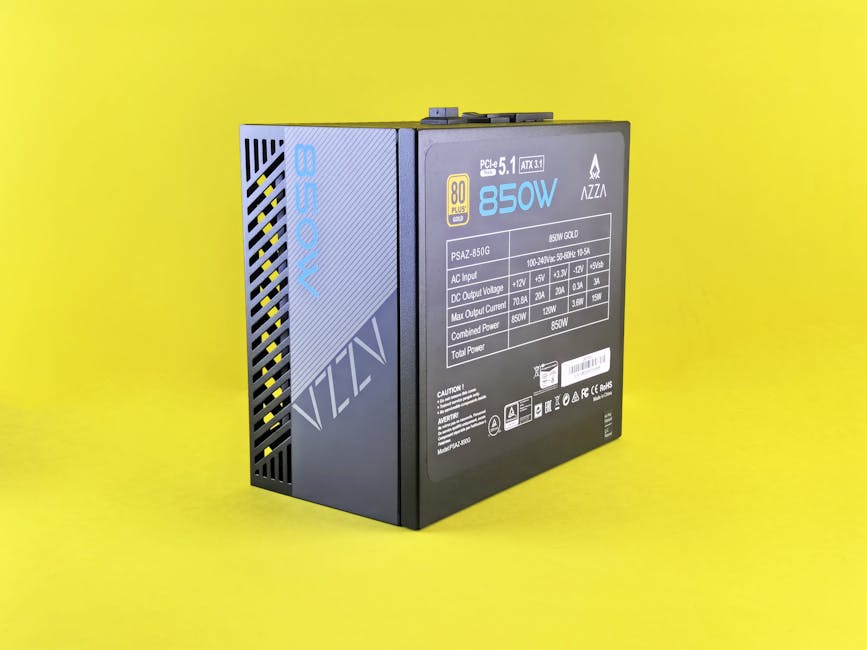
선명한 노란색 배경에 골드 인증을 받은 고효율 850W 전원 공급 장치입니다.

OpenClaw Is Trending. So I Tried It.

AI agents are having a moment. Among them, an open-source AI agent framework called OpenClaw has been making waves in developer communities. “Run an AI secretary on your own server,” “command anything via Telegram” — that’s the pitch.

So I tried it. Installed OpenClaw on the home server from Episode 1, connected it to a Telegram bot, and used it for about a week.

The verdict?

“Revolutionary? No. But a few things are genuinely useful.”

# 실내, 기술, 기술 액세서리의 무료 스톡 사진
Photo by Mateusz Haberny / Pexels

What Is OpenClaw, Briefly

OpenClaw is an open-source AI agent platform. Install it on your server, and AI doesn’t just chat — it actually executes tasks. It reads files, calls external APIs, and runs jobs automatically on a schedule. The biggest difference from ChatGPT is this “agency” — the ability to act, not just answer.

It integrates with messengers like Telegram and Slack, and you can extend functionality through a plugin system called “skills.” You can freely swap AI models — Gemini, Claude, GPT, local LLMs, whatever you want.

Installation is one Docker command. But the actual skill development and setup… I’ll get to that.

Connecting Telegram — Meet “Jolgae”

After installing OpenClaw, you connect it to a Telegram bot. Create one through BotFather, drop the token into OpenClaw’s config, done. That part’s easy.

The important part is the name. What do you call your AI assistant? After some thought — “Jolgae” (졸개).

Jolgae is a Korean word meaning “underling” or “lackey” — the lowest-ranking errand boy in the Joseon Dynasty military. Someone who just does what they’re told, no questions asked. Think about what an AI agent actually is. It’s fundamentally “a thing that does stuff when you tell it to.” No need for grandiose names like “Jarvis” or “Alexa.” Let’s be honest. It’s a lackey.

“Jolgae, what’s the weather?” “Jolgae, translate this.” — it just feels natural. Not some grand AI assistant, just an errand boy I boss around. Took five seconds to name it, but surprisingly satisfying.

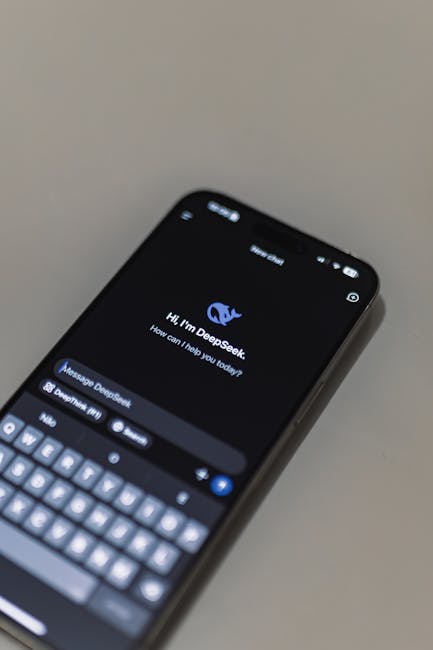
DeepSeek AI 대화 기능이 탑재된 AI 챗봇 인터페이스를 보여주는 스마트폰 화면의 클로즈업.
Photo by Matheus Bertelli / Pexels

Honestly, It Wasn’t Mind-Blowing

My expectations were high. “AI agent” sounds like science fiction. An AI secretary living on my server? Commands via Telegram?

But in practice… it’s not that different from texting ChatGPT. Ask a question, get an answer. Request a search, it searches. There were honest moments of “…is that it?”

The things developers rave about — the skill system architecture, model waterfall switching, API routing — technically elegant, sure. But as a regular user, “so what actually changes in my daily life?” matters more.

Opening the ChatGPT or Gemini app to ask a question versus texting Jolgae on Telegram — the difference isn’t dramatic. At least not at first.

But Then. Things Start Getting Convenient.

A few days in, I noticed something. “Hmm, I’d miss this if it were gone.”

It doesn’t dramatically change your life. But small conveniences stack up, and that stack gets surprisingly tall. Here are the features I found genuinely useful after a week.

1. Morning Briefing — No More Scrolling

Every morning at 7 AM, there’s a Telegram message waiting. Busan weather and air quality, exchange rates and gold prices, industry news I follow, AI tech trends, gaming news. Only topics I care about.

I used to open a news page on my commute and scroll through ads and clickbait until something interesting showed up. Now I don’t have to. AI reads the articles and sends 3-line summaries to Telegram. Two minutes on the subway and I’m caught up for the day.

Would I install OpenClaw just for this? That’s a stretch. But it’s the feature I use daily and enjoy most.

휴대폰에서 텔레그램 앱 사용하기
Photo by Viralyft / Pexels

2. Voice Transcription — This Actually Saves Money

This was the surprise killer feature. Google Meet, Zoom, Teams, Webex — send Jolgae a meeting link and a bot joins the call, records it, and converts everything to text.

Whisper (open-source speech recognition AI) runs on the server and converts speech to text. Jolgae then summarizes the result, separating key points, action items, and decisions. Results auto-save to Notion too. When the meeting ends, the minutes are waiting in Telegram.

Cloud transcription services like Otter.ai run $20-30/month. This setup? $0. Everything processes on my server.

One realistic caveat though. Whisper is hardware-hungry. Running local Whisper on my server (Ryzen 7, 32GB RAM) with CPU only, a 1-hour audio takes over an hour to transcribe. Yes, slower than real-time. You wait as long as the recording — or longer. An NVIDIA GPU with CUDA would make it 5-10x faster, but my server only has an AMD integrated GPU (Radeon 780M). AMD doesn’t support Vulkan acceleration for this, so the GPU just sits there unused. CPU-only it is. You need at least 16GB RAM for the medium-quality model, and 32GB for comfortable large-model usage. On an 8GB machine, it’s practically unusable.

So I also use OpenAI’s Whisper API. Cloud processing makes the speed noticeably better. Still not snappy, but a lot more bearable. Free local vs paid API — pick depending on the situation. I’ll cover this feature in more detail in the next episode.

3. Weekend Outing Planner — My Wife Likes This One

Friday at 6 PM, “Weekend outing recommendations!” arrives on Telegram. It checks weekend weather, picks three seasonal courses near Busan. Each comes with the address, drive time, kid-friendliness rating, parking info, estimated cost, and a rainy-day backup.

Honestly, the recommendation quality isn’t always great. Sometimes it suggests odd places, or recommends spots I’ve already visited. But the time spent wondering “what do we do this weekend?” shrinks. Bad suggestion? Don’t go. Good one? Just go.

Sharing “how about here?” with my wife turns into a conversation starter. That’s way better than staring at each other asking “so… what should we do?”

4. Auto Blog Publishing — 10 Minutes Per Post

This blog itself is proof. Give Jolgae a topic and it handles keyword research, writing, SEO meta tags, stock image insertion, and bilingual KO/EN publishing to WordPress. About 10 minutes per post.

Of course, AI-written content doesn’t go up unedited. There’s always something to fix. AI has never produced a 100% perfect post. But starting from a blank page versus starting from an 80% draft is night and day. I’ll dive deeper into the blog auto-publishing pipeline in the next episode.

cms, 공책, 구성의 무료 스톡 사진
Photo by Pixabay / Pexels

Things That Fell Short

An honest review means covering the downsides too.

  • For general chat, ChatGPT is just better. Faster responses, higher quality answers. Opening the ChatGPT app is often more convenient than texting Jolgae on Telegram.
  • Setting up skills isn’t easy. Officially, “no code needed.” In reality, you end up having AI write code for you. A non-developer adding new skills alone isn’t realistic.
  • It’s dumb sometimes. Misunderstands commands, sends wrong results, or errors out for no apparent reason. “AI agent” absolutely does not mean infallible.
  • Responses can be slow. Simple chat is fast, but tasks involving web search can take 30 seconds to a minute. Frustrating when you’re in a hurry.

ChatGPT vs OpenClaw — Side by Side

ChatGPT / Gemini App OpenClaw (Self-Hosted)
Chat Quality High Moderate (depends on model)
Response Speed Fast Moderate to slow
Scheduled Tasks (Cron) No Yes
Access Server Files No Yes
External API Integration Limited Unlimited
Telegram Integration No Built-in
Data Privacy Cloud-stored Your server only
Extensibility GPTs (limited) Skill system (unlimited)
Setup Difficulty None Docker required
Cost $20+/month API usage only

Bottom line: ChatGPT wins overwhelmingly on chat quality and speed. But if you need automation, scheduled execution, and server integration, OpenClaw can do things ChatGPT simply can’t. Different tools for different jobs.

So, Worth Installing?

OpenClaw is a good fit if you:

  • Already have a home server running Docker
  • Need daily, repetitive information gathering (news briefings, price monitoring)
  • Do frequent voice transcription (this genuinely saves cloud service fees)
  • Want everything unified through one Telegram bot

You can skip it if you:

  • Are happy with ChatGPT Plus or Gemini Advanced subscriptions
  • Don’t have repetitive tasks worth automating
  • Don’t have a server — phone only

It’s not a revolution. But once set up, daily conveniences quietly accumulate. Morning briefings, voice transcription, weekend recommendations — those three alone made the installation worthwhile for me.

가구, 기능성 가구, 기술의 무료 스톡 사진
Photo by Mateusz Haberny / Pexels

Technical Details (For the Curious)

My Jolgae (OpenClaw agent) configuration for reference:

Item Configuration
AI Models Gemini 2.5 Flash (primary) → Claude Haiku → GPT-4.1-mini → Ollama (local backup)
Installed Skills 32 (briefing, transcription, blog, planner, monitoring, etc.)
Automated Tasks 1 daily + 3 weekly + 2 monthly
Interface Telegram bot
Server Beelink SER9 MAX, AMD Ryzen 7, 32GB DDR5
Monthly Cost ~$4 electricity + API usage fees

OpenClaw installation itself is one Docker command. But skill development and detailed configuration? I had AI (Claude Code) do it for me. Honestly, a non-developer doing it alone is tough. But having AI do it for you counts as a valid approach. That’s how things work in 2026.

Currently Installed Skills (32)

Category Skill What It Does
Daily Automation morning-briefing Custom news briefing every morning
weekend-planner Weekend outing course recommendations
weekly-insight International trends weekly digest
Content blog-factory Auto blog writing + publishing
translate-blog Multilingual blog translation
image-gen AI image generation
Work Tools meeting-transcribe Voice file transcription + summary
ocr-bot Extract text from images
gold-briefing Business news briefing
Monitoring rate-monitor Telecom rate change detection
busan-culture Busan culture/experience program watch
power-monitor Server power monitoring
Knowledge Mgmt notion-rag Notion semantic search
local-rag Local file semantic search
second-brain Personal knowledge management
System system-heal Server self-healing
self-evolution Agent self-learning
Lifestyle food-recommend Restaurant recommendations
anniversary Anniversary reminders
Other +13 more n8n integration, decision helper, side hustle explorer, etc.

Of these, only about 5-6 make a noticeable daily difference. The rest are “nice to have.” But those 5-6 showing up in Telegram every morning — that’s the whole point.

Next Episode Preview

The blog auto-publishing I briefly mentioned in this episode — next time, I go deep. How AI publishes a blog post in 10 minutes — from keyword research to bilingual KO/EN publishing, all broken down from a non-developer’s perspective.

EP.6 — AI Writes My Blog? Building an Auto-Publishing Pipeline.

🎮 Sega’s Last Spark, Dreamcast: From Development Secrets to Masterpiece Games, and a Regrettable Farewell!

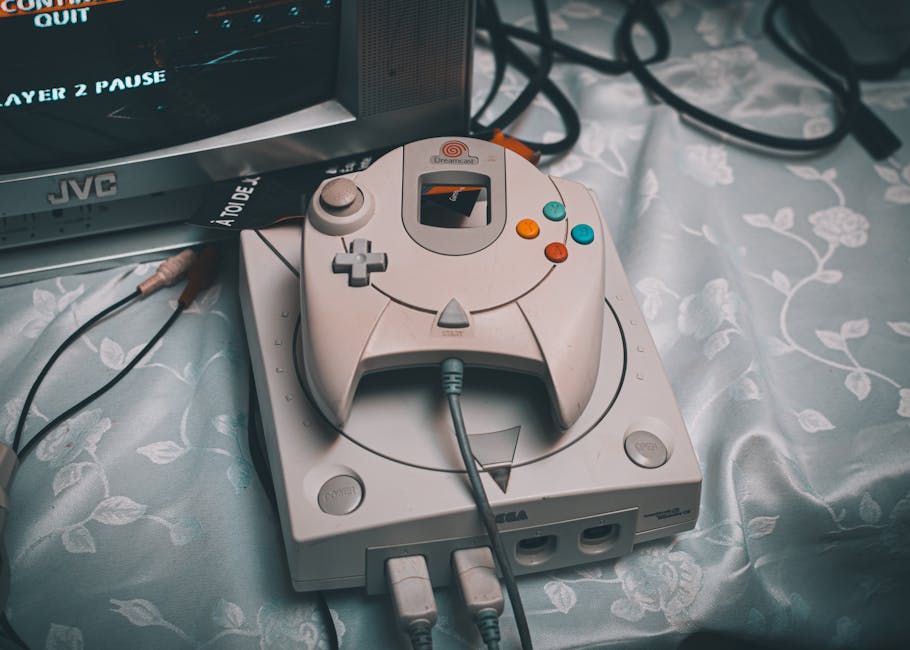
빈티지 설정의 컨트롤러가 있는 Dreamcast 콘솔

# 🎮 Sega’s Last Spark, Dreamcast: From Development Secrets to Masterpiece Games, and a Regrettable Farewell!

Hey, fellow retro game lovers! Today, I want to talk about one of my all-time favorite consoles: the **Sega Dreamcast**. 💖 You know, it was really hard to get this console in Korea. But because I worked so hard to get my hands on it, it holds a special place in my heart, more than any other console! From its birth to its masterpiece games, and why it had to leave us so soon, I’m going to dive into all the super detailed stories right now!

## The Dreamcast’s Development Secrets: Rising from the Ashes of the Saturn’s Failure!

The Dreamcast was Sega’s last home console, and it carried Sega’s ambitious plan to bounce back from the struggles of the Sega Saturn, which had been losing to the PlayStation. Bernie Stolar, the president of Sega of America at the time, publicly declared, “The Saturn is not our future!” and strongly urged the development of a new platform. 😥

### The Hidden Story of Codename ‘Blackbelt’, ‘Dural’, and ‘Katana’

During its development, the Dreamcast went through several codenames. Initially, a North American development team led by Tatsuo Yamamoto proposed a design under the codename **’Blackbelt’**, utilizing a Motorola PowerPC 603e CPU and 3dfx Voodoo graphics processors. However, this design was not ultimately adopted. Simultaneously, a Japanese internal team led by Hideki Sato was developing a project codenamed **’Dural’**, which combined a Hitachi SH-4 CPU and an NEC PowerVR2 GPU. The Japanese team’s design was eventually chosen.

Later, in February 1998, the Japanese team’s ‘Dural’ project’s codename was changed to **’Katana’**, symbolizing the cutting off of the ‘Blackbelt’ project. This ‘Katana’ design became the basis for the Dreamcast hardware we know today, and the official development kit was also referred to as ‘Katana’. Sega, having learned from the complex and expensive hardware of the Saturn, focused on cost reduction and ease of development, striving to design it using ‘off-the-shelf components’.

### Ahead-of-Its-Time Hardware Specs

The Dreamcast boasted incredibly powerful specs for its era. It featured a Hitachi SH-4 CPU and a NEC PowerVR2 GPU. The SH-4 CPU, in particular, showed off an amazing 1.4 GFLOPS of floating-point performance for a home console! For its storage medium, it used GD-ROM (Giga Disc Read-Only Memory), offering much more capacity than CD-ROMs at the time. Unfortunately, this capacity proved insufficient compared to the PlayStation 2’s DVD-ROM, which became a drawback later on.

[IMAGE: Dreamcast console with controller]

### Pioneer of Online Gaming, and Collaboration with Microsoft

The Dreamcast was the **first console** to include a **built-in modem and internet support**! It truly pioneered the era of online gaming, which is so common today! Although the internet infrastructure wasn’t as developed back then, preventing full utilization of this feature, Sega cleverly designed the modem to be detachable, allowing for flexible adaptation to future communication changes. 👍

Sega even partnered with Microsoft to port Windows CE to the Dreamcast, enabling DirectX-based game development. This made it much easier for third-party developers to create games!

### The Secret Behind Its Unique Name and Logo

The name ‘Dreamcast’ is a portmanteau of ‘dream’ and ‘broadcast,’ chosen from over 5,000 public submissions. Isn’t the meaning, “broadcasting dreams,” just awesome? ✨ And the iconic orange swirl logo (for NTSC regions) originated from a color symbolizing ‘luck’ in Japan. There’s also a fun backstory that it was changed to blue in Europe (PAL regions) because it resembled a German company’s logo!

## Masterpiece Games that Shined on the Dreamcast: Timeless Fun! 🎮

Even though the Dreamcast had a short lifespan, it left behind a treasure trove of truly great games. Let’s look at a few of them!

### The Apex of Fighting Games, SoulCalibur

If I had to pick the best Dreamcast game, **SoulCalibur** would definitely be at the top! 🤩 Its stunning graphics and exhilarating weapon-based combat were a huge shock to gamers at the time. Even today, the graphics are so good they might surprise you!

### Sega’s Pride, Sonic Adventure

Sega’s mascot Sonic made a spectacular return in 3D with **Sonic Adventure**! Its fast-paced action and thrilling stages truly showcased the Dreamcast’s power. It was a bestseller, selling over 2.5 million copies!

### Hip and Stylish Urban Action, Jet Set Radio

With its unique cel-shaded graphics and cool street culture vibe, **Jet Set Radio** was truly a game ahead of its time. Skating through the city and tagging graffiti was incredibly fun! 🎨

[IMAGE: Jet Set Radio gameplay]

### Breathtaking Horror, Resident Evil Code: Veronica

Considered the masterpiece of the Resident Evil series released on Dreamcast, **Code: Veronica**! 😱 Its significantly improved graphics and chilling story thrilled many fans. Playing it alone at night was genuinely scary…

### A Grand RPG Saga in the Sky, Skies of Arcadia

With beautiful visuals, a solid story, and an adventure of sky pirates, **Skies of Arcadia** is a Dreamcast RPG masterpiece. Its grand world and charming characters are still vivid in my memory!

### Thrilling Arcade Fun, Crazy Taxi

**Crazy Taxi** was an exhilarating arcade racing game enjoyed by many worldwide and released on various platforms. The pure joy of speeding around as a taxi driver was infectious!

### Sega’s Ambitious Project, Shenmue

Sega poured an astronomical 70 billion won into the ambitious **Shenmue**! 😲 It garnered attention for its massive scale and innovative gameplay, but unfortunately, its disappointing sales were one of the reasons for the Dreamcast’s failure. Still, its artistic merit is recognized by many gamers even today.

### Other Dreamcast Masterpieces

Beyond these, countless other masterpieces like **Virtua Fighter 3tb, NFL 2K1, NBA 2K1, Power Stone 2, and Space Channel 5** graced the Dreamcast! Isn’t it amazing how many great games were released in such a short time? 🥹

## The Light and Shadow of the Dreamcast: Its Popularity and Regrettable Demise

The Dreamcast enjoyed immense popularity upon its initial release! In North America, it sold over 225,000 units within the first 24 hours, setting a record for the ‘biggest 24 hours’ in entertainment retail history at the time, and surpassed 500,000 units in just two weeks! 😲 Its innovative features like online play and downloadable content were praised as being ahead of their time.

### The Inevitable War with the PS2

However, the Dreamcast’s biggest rival was **Sony’s PlayStation 2 (PS2)**. Released a year after the Dreamcast, the PS2 completely dominated the market with its marketing slogan of “10 times more powerful than Dreamcast” and its DVD playback feature. At a time when DVD players were expensive, the PS2 offered an attractive option as both a gaming console and a DVD player. The Dreamcast’s lack of this feature proved fatal. 💔

[IMAGE: Sega Dreamcast vs PlayStation 2]

### Sega’s Tarnished Reputation and Other Factors

The Dreamcast also carried the burden of restoring Sega’s reputation, which had been damaged by the failures of previous consoles like the 32X and Saturn. Furthermore, the online gaming market was still in its infancy, and the Dreamcast’s online features couldn’t fully shine due to insufficient infrastructure. Despite investing heavily in masterpieces like Shenmue, sales fell short of expectations, and the ease of game piracy also contributed to its poor sales.

Ultimately, Sega couldn’t bear the massive financial losses and announced the discontinuation of Dreamcast production and withdrawal from the home console business in January 2001. Thus, the Dreamcast sold approximately 9.13 million units worldwide and remained in history as Sega’s last home console. 🥲

## The Legacy of the Dreamcast and Its Impact on Retro Gamers

Although the Dreamcast was a commercial failure, its impact on the gaming industry was profound. It demonstrated the potential of online gaming and downloadable content, and its innovative hardware and unique games provided unforgettable experiences for many gamers. Even today, it is fondly remembered as a ‘tragic masterpiece’ among retro gamers. I’m sure many people, like me, have a special affection for the Dreamcast! 💖

The Dreamcast is more than just a console; it will forever be remembered in our hearts as a symbol of Sega’s pioneering spirit and innovation. Hoping that a wonderful console inheriting the spirit of the Dreamcast will emerge someday, I’ll conclude today’s story here! I’ll be back with more fun retro game stories next time! Bye~ 👋

Even a Code-Illiterate Built It! Home Server Journey (4) — Running AI Locally with Ollama

e스포츠, pc 설정, rgb 조명의 무료 스톡 사진

Running AI on My Own Server?

ChatGPT, Gemini, Claude… everyone uses cloud AI. But have you ever thought:

“If I run AI on my own computer, it’s free AND my data stays private?”

That’s exactly right. Running a local LLM (Large Language Model) means no subscription fees and zero data leaving your machine. Perfect privacy.

But reality is… a bit different. I installed AI on my SER9 MAX mini PC from Episode 1, and the honest verdict? “It works. But it’s slow.”

DeepSeek AI 인터페이스를 보여주는 MacBook으로 디지털 혁신을 선보입니다.
Photo by Matheus Bertelli / Pexels

Ollama — The Local LLM Engine

Ollama is a tool that lets you run AI models on your own hardware. Sounds complicated? I had AI install it for me. A few terminal commands and done.

Once installed, one command — ollama run qwen3:14b — and the AI starts responding. The model downloads automatically, no configuration needed.

There are dozens of open-source models available: Llama, Qwen, Gemma, Mistral, DeepSeek… all free. Pick whichever fits your needs.

Open WebUI — ChatGPT Interface in Your Browser

Chatting in a terminal is honestly uncomfortable. So I installed Open WebUI — a program that gives you the exact same ChatGPT-like interface, running entirely on your server.

Again, AI handled the installation. One Docker container and it’s running.

The best part? My wife uses it too. Anyone on the same network can open a browser on their phone or tablet and start chatting. You can create separate accounts, so conversation history stays private for each person. With Tailscale from Episode 2, it’s accessible from anywhere.

DeepSeek 애플리케이션이 있는 대화형 AI 인터페이스를 보여주는 노트북 이미지.
Photo by Matheus Bertelli / Pexels

Specs vs. Reality — This Is What Matters

The most important question in local AI is “Can my hardware actually handle it?” Here are my real-world numbers.

My Server Specs

Component Specification
CPU AMD Ryzen 7 255 (8 cores, 16 threads)
RAM DDR5 32GB
GPU Integrated (AMD Radeon 780M) — effectively none
Storage NVMe SSD 1TB
OS Windows 11 + WSL2 (Linux)

Real Benchmarks (Qwen3 14B Model)

Metric Value
Generation Speed 5.5 tokens/sec
Simple Question Response ~25 seconds
RAM Usage ~10GB
Quantization Q4_K_M (9.3GB file)

What ChatGPT answers in 1 second takes my server 25 seconds. That’s roughly 5-10x slower in real usage. Watching characters appear one by one is… a patience test.

Why So Slow?

No dedicated GPU. AI inference is optimized for GPU computing, but my mini PC only has integrated graphics. I’ve confirmed that the AMD 780M iGPU can’t be used for AI acceleration under WSL2. Everything runs on CPU only — hence the speed.

With an NVIDIA GPU? The same model runs 5-10x faster. An RTX 4060 can push 30+ tokens/second. But you can’t put a discrete GPU in a mini PC — that’s desktop or gaming laptop territory.

RAM Determines Model Size

The most important spec for local AI is RAM. The entire model loads into memory.

RAM Model Size Quality
8GB 7B (7 billion parameters) Basic chat OK, struggles with complexity
16GB 14B (14 billion parameters) Decent conversation, handles general tasks
32GB 14B + headroom / can try 30B Comfortable 14B + other services running
64GB+ 70B (70 billion parameters) Approaching ChatGPT quality

7B vs 14B vs 70B — bigger means better. 7B handles simple chat but frequently hallucinates on complex questions. 14B is the minimum threshold where it feels “actually usable.” 70B jumps in quality but needs 40GB+ RAM.

That’s why I have 32GB. Running a 14B model while also keeping other Docker services (Immich, WordPress, n8n, etc.) alive requires the headroom.

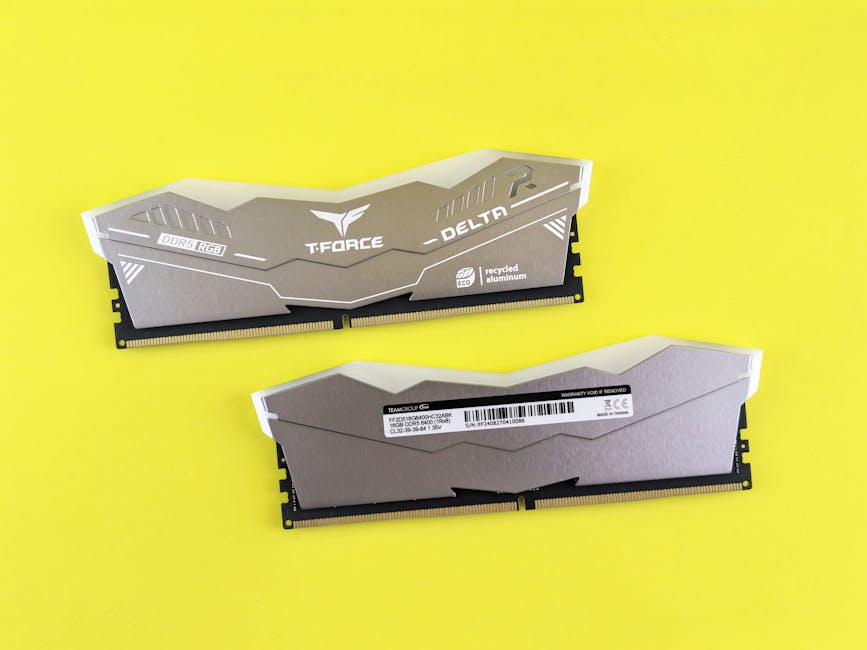
선명한 노란색 표면의 T-Force Delta RGB DDR5 메모리 모듈.
Photo by Andrey Matveev / Pexels

So Is It Worth It?

Here’s my honest summary:

Worth it for:

  • Simple conversations, translation, summarization — slow but delivers results
  • Privacy-sensitive content — analyzing confidential work documents
  • Offline use — on a plane, in areas with no internet
  • Connecting AI to other apps — unlimited API calls, zero cost

Not worth it for:

  • Coding, complex analysis — cloud AI is overwhelmingly better
  • When you need fast responses — if you can’t wait 25 seconds
  • When you need current information — local models don’t know anything after their training date

The core value of local AI is “free” and “privacy.” If you’re expecting performance, you’ll be disappointed. But if those two things matter to you, it’s absolutely worthwhile.

Next Episode Preview

So far we’ve covered building the server, remote access, photo backup, and local AI. Next up is the piece that ties everything together — an AI agent and Telegram bot. Send a message on Telegram, and AI handles the rest. Building your own digital assistant.

EP.5 — AI Agent + Telegram: Putting a Secretary on Your Server. Stay tuned.

🏎️ 2026 F1 Season Kicks Off! Australian Grand Prix Qualifying & Race Results Summary!

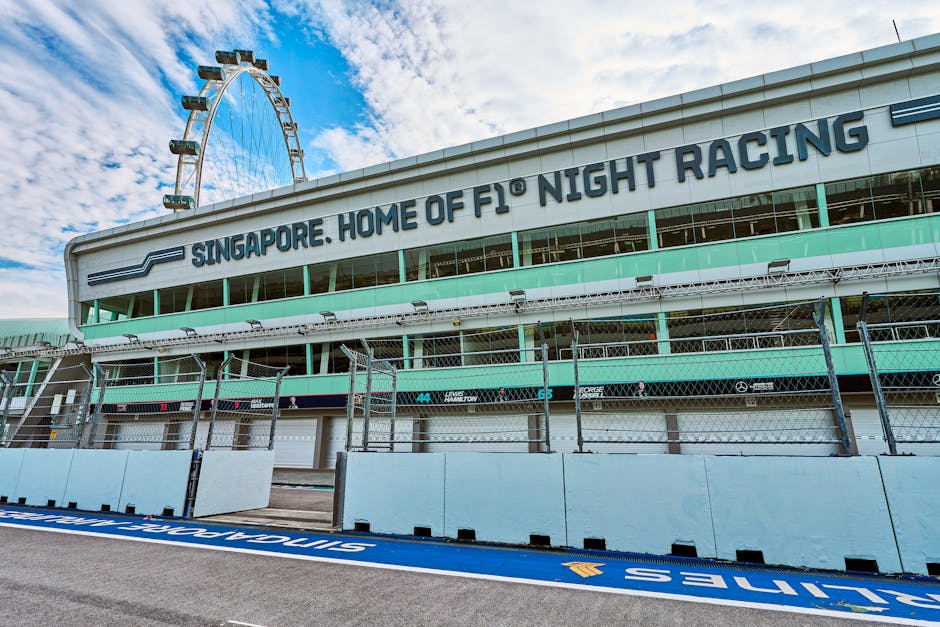
낮 동안 텅 빈 싱가포르 그랑프리 F1 서킷에는 경주 트랙과 싱가포르 플라이어가 전시되어 있습니다.

🏎️ 2026 F1 Season Kicks Off! Australian Grand Prix Qualifying & Race Results Summary!

Hello, F1 fans! The eagerly anticipated 2026 Formula 1 season has finally begun with a bang! The first round, as always, unfolded with intense excitement at the Albert Park Circuit in Melbourne, Australia. What kind of drama did this opening Australian Grand Prix deliver to thrill us? Let’s dive deep into everything, from qualifying to race results!

2026 F1 Australian Grand Prix Qualifying: Mercedes’ Strong Start, George Russell on Pole Position!

The first qualifying session of the 2026 F1 season was thrilling from the outset. Drivers pushed their cars to the limit on the Albert Park Circuit, fiercely competing to gain even a mere 0.001 second advantage. As a result, Mercedes’ George Russell secured the first pole position of the 2026 season with a time of 1:18.518, signalling a powerful start! His teammate, Kimi Antonelli, also took 2nd place with a mere 0.293-second difference, showcasing Mercedes’ formidable strength.

Qualifying (Q3 Results) Standings

Rank Driver (Constructor) Time Starting Grid
P1 63. George Russell (Mercedes) 1:18.518 1st
P2 12. Kimi Antonelli (Mercedes) + 0.293s 2nd
P3 6. Isack Hadjar (Red Bull Racing – Red Bull Ford) + 0.785s 3rd
P4 16. Charles Leclerc (Ferrari) + 0.809s 4th
P5 81. Oscar Piastri (McLaren – Mercedes) + 0.862s 5th
P6 1. Lando Norris (McLaren – Mercedes) + 0.957s 6th
P7 44. Lewis Hamilton (Ferrari) + 0.960s 7th
P8 30. Liam Lawson (Racing Bulls – Red Bull Ford) + 1.476s 8th
P9 41. Ayumu Iwasa (Racing Bulls – Red Bull Ford) + 2.729s 9th
P10 5. Gabriel Bortoleto (Audi) No Time 10th

Fierce Competition in Q2 and Q1

Drivers who failed to advance to Q3 also gave their all until the very end. Notably, Gabriel Bortoleto (Audi) made it to Q3 but did not set a time, and many drivers like Nico Hülkenberg (Audi) and Oliver Bearman (Haas – Ferrari) narrowly missed out on Q3.

The most striking event was Max Verstappen (Red Bull Racing)’s elimination in Q1. He failed to meet the 107% rule, leading to an unexpected start from the 20th grid position. Additionally, Carlos Sainz Jr. (Atlassian Williams – Mercedes) and Lance Stroll (Aston Martin Aramco – Honda) were also excluded from the race due to not meeting the 107% rule. These early season surprises indicate that the 2026 F1 season promises to be even more unpredictable and exciting.

2026 F1 Australian Grand Prix Race Results: Mercedes’ One-Two Finish and Max Verstappen’s Epic Comeback!

The qualifying results had a significant impact on the race, but F1 races are full of unpredictable variables! This Australian Grand Prix was also packed with dramatic moments.

Mercedes’ Dominant Victory! George Russell & Kimi Antonelli

In this race held from March 6th to 8th at the Albert Park Circuit in Melbourne, Mercedes’ George Russell proudly took the victory! Continuing his pole position momentum, he delivered a dominant performance in the race to secure the first win of the season. His teammate, Kimi Antonelli, also finished 2nd, achieving a perfect one-two finish for Mercedes to kick off the season. As if to wash away last season’s struggles, the synergy between Mercedes’ new car and drivers is already building high expectations.

Rank Driver Team
1 George Russell Mercedes
2 Kimi Antonelli Mercedes
3 Charles Leclerc Ferrari
4 Lewis Hamilton Ferrari
5 Lando Norris McLaren
6 Max Verstappen Red Bull Racing

Ferrari, McLaren, and Red Bull’s Incredible Pursuit!

Following Mercedes, Ferrari’s Charles Leclerc secured 3rd place, stepping onto the podium. His veteran teammate, Lewis Hamilton, also finished 4th, showing that Ferrari’s strength is not to be underestimated.

McLaren’s Lando Norris consistently performed, finishing 5th. The most astonishing performance came from Red Bull Racing’s Max Verstappen. Despite starting from a disadvantageous 20th position in qualifying, he demonstrated incredible driving skills and excellent race management to recover his position, ultimately finishing 6th. Although he didn’t make it to the podium, his sheer power once again proved to be a formidable threat. It was an epic comeback that kept F1 fans on the edge of their seats.

2026 F1 Season Outlook: Mercedes’ Resurgence or the Rise of a New Champion?

The results of this Australian Grand Prix will be a crucial clue in forecasting the landscape of the 2026 season. While Mercedes delivered a powerful one-two finish, showing a dominant performance early in the season, Ferrari and McLaren are also maintaining consistent strength. Especially, Max Verstappen’s demonstrated power suggests that Red Bull Racing can challenge for the lead at any moment.

Will Mercedes dominate this season? Or will other teams like Ferrari, McLaren, and Red Bull stop Mercedes’ solo run and crown a new champion? The 2026 F1 season is already promising exciting competition. We eagerly await the upcoming races!

Concluding: Looking Forward to the Next Round!

The Australian Grand Prix, which opened the 2026 F1 season, left us with many stories and expectations. We are already thrilled about what exciting news and memorable moments await us in the next round. F1 fans, we ask for your enthusiastic support in the upcoming races as well!

Even a Code-Illiterate Built It\! Home Server Journey (3) — Replacing Google Photos with Immich 📸🏠

gmail, google 포토, 가젯의 무료 스톡 사진

In Part 3, we set up a blog. Now it’s time for something actually useful.

Photo backup.

Google Photos: $2/month. iCloud: $1/month. Doesn’t sound like much, right? But what if you could do the same thing on your own server, for free, with unlimited storage?

Here’s the punchline: after setting up Immich on my home server, I cancelled my Google Photos subscription. Over 35,000 photos are now backed up automatically, and I can access them from anywhere thanks to Tailscale. What did I actually do? I told AI to set it up. That’s it.

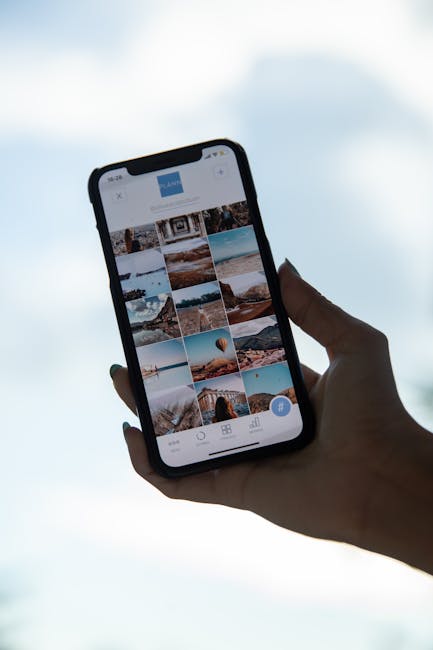
Photo gallery on smartphone
Photo by Plann / Pexels

Why I Left Google Photos

Google Photos is great. AI search, automatic albums, the whole deal. But here’s the thing:

  1. 15GB free runs out fast. Take photos for three months and you’re done.
  2. Paid plans never end. 100GB, then 200GB, then 2TB… it’s a subscription for life.
  3. Your photos live on someone else’s server. What if Google changes their policy? What if they shut it down?

iCloud is the same story. I was paying for 50GB just for iPhone backup. Another monthly charge that never stops.

“I have a server at home. Why am I paying someone else to store my photos?” Once you think that, you’re already halfway there.

What Is Immich?

Immich is basically a self-hosted Google Photos.

  • 📱 Mobile app — automatic backup from Android and iOS
  • 🔍 AI search — search “beach” or “cat” and it just works
  • 🗺️ Map view — see where every photo was taken on a world map
  • 👥 Face recognition — automatically groups people
  • 📂 Albums — shared albums, timeline, everything
  • 🔒 Your server — data stays in your home

It does almost everything Google Photos does. It’s free, open-source, and the only storage limit is your hard drive.

클로즈업 사진에서 나무 표면 위의 핸드폰
Photo by Markus Winkler / Pexels

Installation: One Docker Compose File

Remember the Docker setup from Part 1? We just add on top of it.

# docker-compose.yml (essentials)
services:
  immich-server:
    image: ghcr.io/immich-app/immich-server:release
    ports:
      - "2283:2283"
    volumes:
      - ./upload:/usr/src/app/upload
    environment:
      - DB_PASSWORD=your_secure_password_here
      - REDIS_HOSTNAME=redis

  immich-machine-learning:
    image: ghcr.io/immich-app/immich-machine-learning:release

  redis:
    image: redis:7-alpine

  database:
    image: tensorchord/pgvecto-rs:pg16-v0.2.1

I told Claude “install Immich” and it created this file and ran docker compose up -d for me. I just watched.

Once it’s running, go to http://server-ip:2283, create an admin account, and you’re ready.

Auto-Backup from Your Phone

  1. Install Immich from Play Store (or App Store for iPhone)
  2. Enter your server address: http://192.168.xxx.xxx:2283

    – Want access outside your home? Use your Tailscale IP (see Part 2!)

  3. Log in → Enable auto backup
  4. Done.

That’s literally it. Every photo you take now automatically goes to your home server.

I uploaded over 35,000 photos from my Galaxy S25 Ultra. How long did it take? About 3-4 days. But honestly, I didn’t even notice. I installed the app, turned on backup, and just lived my life. Went to work, ate, slept — and a few days later I opened the app and everything was there. That’s the beauty of it. Set it and forget it.

Cloud backup and storage
Photo by Alpha En / Pexels

iPhone Users: You’re Covered Too

Same exact process:

  1. Install Immich from App Store
  2. Enter server address + log in
  3. Auto backup ON

For existing photos stuck in iCloud:

  1. Mac Photos app → Settings → “Download Originals to this Mac”
  2. Wait for everything to download (could be dozens of GB)
  3. Use immich-go to bulk upload to your server

Google Photos works the same way. Export via Google Takeout → upload with immich-go. Duplicates are automatically filtered out. Even if the same photo exists in both Google and iCloud, only one copy ends up on your server.

Access Your Photos From Anywhere

Remember the Tailscale setup from Part 2? This is where it pays off.

Set your Immich app’s server address to your Tailscale IP (100.xx.xx.xx:2283), and you can access your photos from a cafe, from a business trip, from another country. It’s a VPN, so security isn’t a concern either.

AI Features: No Reason to Miss Google Photos

Immich comes with a built-in Machine Learning server. It runs automatically after installation.

Photo Search

Type “food” in the search bar and only food photos show up. “Beach”, “mountain”, “car” — it all works. Same AI search as Google Photos, but running on your own server.

Face Recognition

It automatically detects and groups faces. Tag someone’s name once, and you can browse all their photos in one place.

Map View

Photos with GPS data appear as pins on a world map. Perfect for “where did I take that photo last year?”

How Much Do You Actually Save?

Let’s do the math.

Service Monthly Yearly
Google Photos 100GB $2 $24
iCloud 50GB $1 $12
Total $3 $36
Immich (self-hosted) $0 $0

What about electricity? The SER9 MAX has a 54W TDP. Running 24/7 costs roughly $1.50/month in electricity. But that’s shared across all services — blog, AI assistant, local LLM, and more. The photo backup cost is effectively zero.

As long as you have hard drive space, it’s unlimited backup. Add a 1TB SSD and you’re set for a decade.

The Honest Downsides

Let’s be real about the cons:

  1. Server down = no access. During power outages or reboots, you can’t reach your photos. The app does cache recent ones for offline viewing though.
  2. You need backup for your backup. If your SSD dies, your photos are gone. External drive or NAS for redundancy is strongly recommended.
  3. Initial upload takes time. 35,000 photos took 3-4 days for me. But it runs in the background — just forget about it and check back later. One day you’ll open the app and it’s all done.
  4. Shared albums are limited. The “share a link with anyone” feature isn’t as polished as Google Photos yet.

But if you believe “my photos should stay on my server”, these trade-offs are worth it.

What’s Next

Photos backed up on our server. Blog is live. Remote access works. Now it’s time to give this server a brain.

In the next part:

  • OpenClaw + Telegram — putting an AI assistant on the server and chatting with it via Telegram
  • A morning briefing bot that sends weather, news, and schedule summaries every day
  • An AI that writes blog posts, generates images, and even codes — my personal AI minion

Stay tuned for the story of how a guy who can’t write a single line of code built his own AI assistant.

This post was written by AI (Claude Code) and reviewed by a code-illiterate human. 🤖✨