In Part 3, we set up a blog. Now it’s time for something actually useful.
Photo backup.
Google Photos: $2/month. iCloud: $1/month. Doesn’t sound like much, right? But what if you could do the same thing on your own server, for free, with unlimited storage?
Here’s the punchline: after setting up Immich on my home server, I cancelled my Google Photos subscription. Over 35,000 photos are now backed up automatically, and I can access them from anywhere thanks to Tailscale. What did I actually do? I told AI to set it up. That’s it.
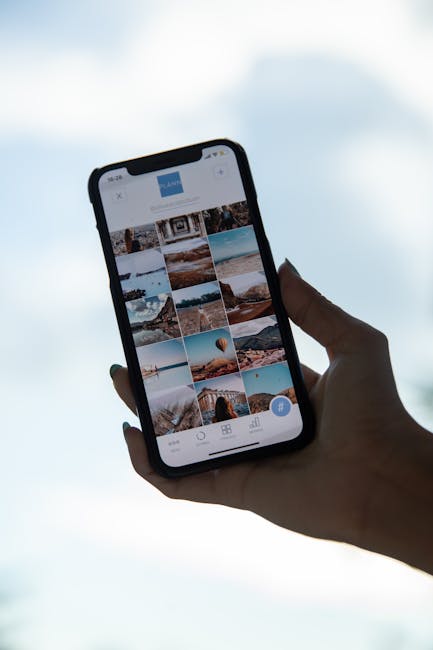
Why I Left Google Photos
Google Photos is great. AI search, automatic albums, the whole deal. But here’s the thing:
- 15GB free runs out fast. Take photos for three months and you’re done.
- Paid plans never end. 100GB, then 200GB, then 2TB… it’s a subscription for life.
- Your photos live on someone else’s server. What if Google changes their policy? What if they shut it down?
iCloud is the same story. I was paying for 50GB just for iPhone backup. Another monthly charge that never stops.
“I have a server at home. Why am I paying someone else to store my photos?” Once you think that, you’re already halfway there.
What Is Immich?
Immich is basically a self-hosted Google Photos.
- 📱 Mobile app — automatic backup from Android and iOS
- 🔍 AI search — search “beach” or “cat” and it just works
- 🗺️ Map view — see where every photo was taken on a world map
- 👥 Face recognition — automatically groups people
- 📂 Albums — shared albums, timeline, everything
- 🔒 Your server — data stays in your home
It does almost everything Google Photos does. It’s free, open-source, and the only storage limit is your hard drive.
Installation: One Docker Compose File
Remember the Docker setup from Part 1? We just add on top of it.
# docker-compose.yml (essentials)
services:
  immich-server:
    image: ghcr.io/immich-app/immich-server:release
    ports:
      - "2283:2283"
    volumes:
      - ./upload:/usr/src/app/upload
    environment:
      - DB_PASSWORD=your_secure_password_here
      - REDIS_HOSTNAME=redis

  immich-machine-learning:
    image: ghcr.io/immich-app/immich-machine-learning:release

  redis:
    image: redis:7-alpine

  database:
    image: tensorchord/pgvecto-rs:pg16-v0.2.1
I told Claude “install Immich” and it created this file and ran docker compose up -d for me. I just watched.
Once it’s running, go to http://server-ip:2283, create an admin account, and you’re ready.
Auto-Backup from Your Phone
- Install Immich from Play Store (or App Store for iPhone)
- Enter your server address:
http://192.168.xxx.xxx:2283– Want access outside your home? Use your Tailscale IP (see Part 2!)
- Log in → Enable auto backup
- Done.
That’s literally it. Every photo you take now automatically goes to your home server.
I uploaded over 35,000 photos from my Galaxy S25 Ultra. How long did it take? About 3-4 days. But honestly, I didn’t even notice. I installed the app, turned on backup, and just lived my life. Went to work, ate, slept — and a few days later I opened the app and everything was there. That’s the beauty of it. Set it and forget it.
iPhone Users: You’re Covered Too
Same exact process:
- Install Immich from App Store
- Enter server address + log in
- Auto backup ON
For existing photos stuck in iCloud:
- Mac Photos app → Settings → “Download Originals to this Mac”
- Wait for everything to download (could be dozens of GB)
- Use
immich-goto bulk upload to your server
Google Photos works the same way. Export via Google Takeout → upload with immich-go. Duplicates are automatically filtered out. Even if the same photo exists in both Google and iCloud, only one copy ends up on your server.
Access Your Photos From Anywhere
Remember the Tailscale setup from Part 2? This is where it pays off.
Set your Immich app’s server address to your Tailscale IP (100.xx.xx.xx:2283), and you can access your photos from a cafe, from a business trip, from another country. It’s a VPN, so security isn’t a concern either.
AI Features: No Reason to Miss Google Photos
Immich comes with a built-in Machine Learning server. It runs automatically after installation.
Photo Search
Type “food” in the search bar and only food photos show up. “Beach”, “mountain”, “car” — it all works. Same AI search as Google Photos, but running on your own server.
Face Recognition
It automatically detects and groups faces. Tag someone’s name once, and you can browse all their photos in one place.
Map View
Photos with GPS data appear as pins on a world map. Perfect for “where did I take that photo last year?”
How Much Do You Actually Save?
Let’s do the math.
| Service | Monthly | Yearly |
|---|---|---|
| Google Photos 100GB | $2 | $24 |
| iCloud 50GB | $1 | $12 |
| Total | $3 | $36 |
| Immich (self-hosted) | $0 | $0 |
What about electricity? The SER9 MAX has a 54W TDP. Running 24/7 costs roughly $1.50/month in electricity. But that’s shared across all services — blog, AI assistant, local LLM, and more. The photo backup cost is effectively zero.
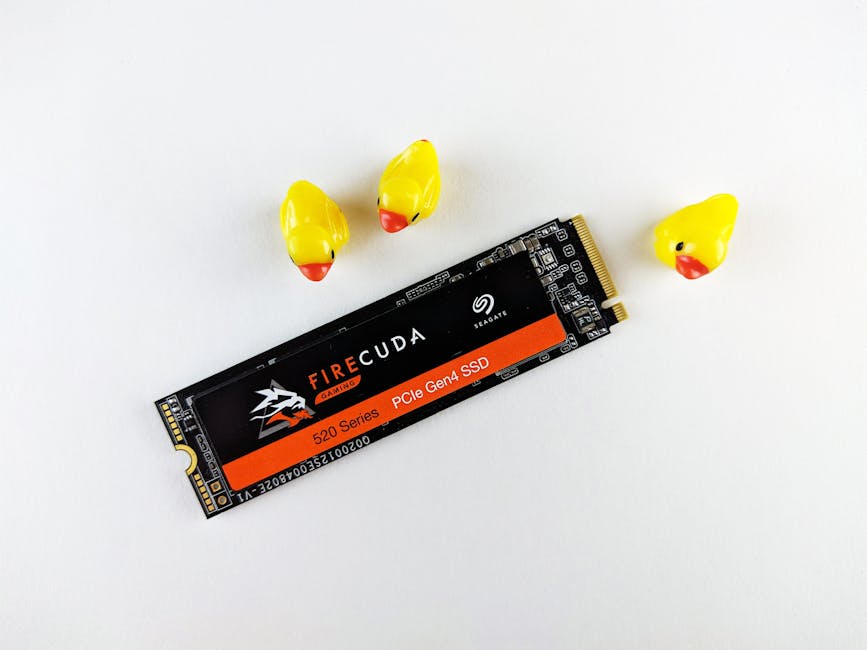
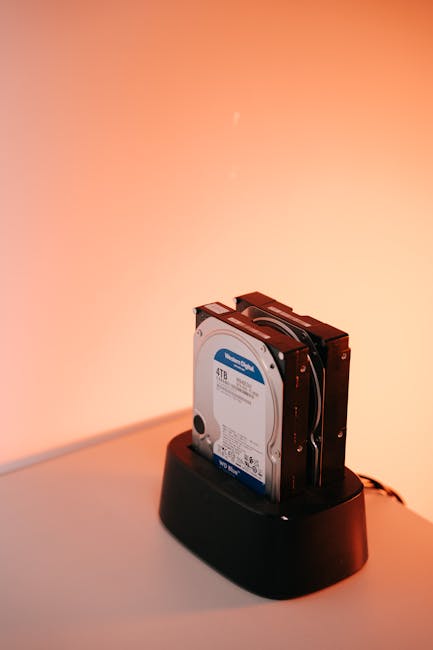
As long as you have hard drive space, it’s unlimited backup. Add a 1TB SSD and you’re set for a decade.
The Honest Downsides
Let’s be real about the cons:
- Server down = no access. During power outages or reboots, you can’t reach your photos. The app does cache recent ones for offline viewing though.
- You need backup for your backup. If your SSD dies, your photos are gone. External drive or NAS for redundancy is strongly recommended.
- Initial upload takes time. 35,000 photos took 3-4 days for me. But it runs in the background — just forget about it and check back later. One day you’ll open the app and it’s all done.
- Shared albums are limited. The “share a link with anyone” feature isn’t as polished as Google Photos yet.
But if you believe “my photos should stay on my server”, these trade-offs are worth it.
What’s Next
Photos backed up on our server. Blog is live. Remote access works. Now it’s time to give this server a brain.
In the next part:
- OpenClaw + Telegram — putting an AI assistant on the server and chatting with it via Telegram
- A morning briefing bot that sends weather, news, and schedule summaries every day
- An AI that writes blog posts, generates images, and even codes — my personal AI minion
Stay tuned for the story of how a guy who can’t write a single line of code built his own AI assistant.
This post was written by AI (Claude Code) and reviewed by a code-illiterate human. 🤖✨