In Part 6, I set up WordPress. In Part 7, I completed automation with n8n. Blog — done. Automation — done. I was writing posts consistently. But here’s the thing.
I had virtually zero visitors.
To be precise, 5 total visitors over 2 weeks. 3 of them were bots (crawlers), and only 2 were real people — and they didn’t even come from search. They clicked a link from somewhere. Search my blog on Google? Nothing. Naver? Nothing. Only Daum showed results, but if you’re invisible on Google and Naver, you basically don’t exist.
The cause was embarrassingly simple.
Tailscale Funnel’s Fatal Flaw: Google Ignores .ts.net Subdomains
Remember setting up Tailscale Funnel in Part 2? It was magical — free public access to my server. The address was blog.dace-sidemirror.ts.net. It worked, SSL was automatic, everything was perfect.
But this address had a critical problem.
.ts.net is a subdomain owned by Tailscale. From Google’s perspective, this is just “a page on someone else’s platform.” It’s one of thousands of subdomains under Tailscale’s root domain. Google doesn’t prioritize indexing such subdomains because crawling thousands of subdomains under a single root domain would be a waste of resources. Tailscale’s own documentation states that Funnel is intended for “development and testing.”
site:ts.net  →  Google results: 0
site:blog.dace-sidemirror.ts.net  →  0
16 posts over 2 weeks, not a single one indexed by Google. No matter how good your content is, if search engines ignore your address, it’s meaningless.
Tailscale Funnel is excellent for development — internal testing, quick demos, webhook testing. But for a public-facing blog, it simply doesn’t work. A blog that doesn’t show up in search is not a blog.
Why a Home Server Blog Needs a Custom Domain
Custom domains aren’t just about SEO:
- Branding —
prsm-studio.comis memorable;blog.dace-sidemirror.ts.netis not - Credibility — A custom domain signals “this person is serious about their site”
- Portability — Switch servers, switch hosts — your domain stays the same
- Email — You can later create custom emails like
[email protected]
The Solution: Custom Domain + Cloudflare Tunnel
I needed two things:
- My own domain — .com, .dev, whatever — an address I own
- A way to connect it to my server — without router port forwarding
Cloudflare solves both. Domain purchase on Cloudflare, tunnel on Cloudflare. And both are free (except the domain registration fee).
| Tailscale Funnel | Cloudflare Tunnel | |
|---|---|---|
| Domain | .ts.net (fixed) | Custom domain |
| SEO | ❌ Not indexed | ✅ Normal indexing |
| SSL | Auto | Auto |
| Speed | Normal | Cloudflare CDN caching |
| Setup | Very easy | Easy (10 min) |
| Cost | Free | Free (domain ~$10-15/year) |
| Port forwarding | Not needed | Not needed |
I kept Tailscale Funnel for internal services. Only the public blog moved to Cloudflare Tunnel. Both tunnels run simultaneously on the same server with no issues.
Step 1: Buy Domain on Cloudflare (5 min, $10.44)
Choosing the domain name took the longest. I wanted something related to a personal project, but all the good ones were taken. After searching around, prsm-studio.com felt right.
I purchased it directly on the Cloudflare dashboard. $10.44/year — less than a dollar per month. This is at-cost pricing (ICANN registration fee), cheaper than anywhere else. GoDaddy and Namecheap look cheap the first year but renewal prices jump 2-3x. Cloudflare charges at-cost, renewals included. They’ve publicly committed to never marking up domain prices.
Domain tip: .com is the safest choice. .dev and .io look cool but cost 2-3x more annually, and some users don’t trust non-.com addresses.
Step 2: Install Cloudflare Tunnel (10 min)

Cloudflare Tunnel creates a secure connection between my server and Cloudflare. No port forwarding needed. Similar to Tailscale Funnel, but the key difference: you use your own domain.
What I did: clicked ‘Create Tunnel’ on Cloudflare dashboard and passed the token to Claude Code. That’s it. Claude Code handled everything else.
# Command executed by Claude Code
sudo cloudflared service install [token from Cloudflare]
One command registers cloudflared as a system service that auto-connects on reboot. Claude Code also guided me through the tunnel routing setup:
- Public hostname: prsm-studio.com
- Service: http://localhost:8080 (WordPress port)
Now prsm-studio.com → Cloudflare Tunnel → my server’s WordPress. Auto SSL, auto CDN caching, and Cloudflare WAF for security — safer than raw port forwarding.
Step 3: WordPress URL Migration — I Just Watched

Changing domains means updating every URL inside WordPress — image paths in posts, internal links, SEO metadata, RSS feed URLs. There’s way more than you’d expect.
What needed changing:
wp-config.php‘sWP_HOMEandWP_SITEURL— core settings for WordPress’s self-awareness- All database URLs — image paths, internal links, metadata
- Yoast SEO schema and OG tags — URLs shown in search results and social shares
- robots.txt sitemap URL — path referenced by search crawlers
- n8n workflow monitoring URLs — automation tool health checks
If I had to do this manually, it would take a week. I wouldn’t even know what to change. I told Claude Code: “Domain changed, handle the rest.” It found and replaced everything:
# Command executed by Claude Code
wp search-replace 'blog.dace-sidemirror.ts.net' 'prsm-studio.com' --all-tables
# Result: 636 replacements
636 items needed changing. Beyond database URLs, Claude Code also modified wp-config.php, cleared Yoast SEO cache, updated robots.txt, changed n8n workflow URLs via API, and updated the blog publishing script’s domain — all automatically. I just watched the terminal output scroll by.
There was a Cloudflare cache hiccup. After updating robots.txt, the old version kept appearing. Cloudflare was caching static files for 4 hours. Claude Code diagnosed the issue and set no-cache headers. All I did was click “Purge Everything” in the Cloudflare dashboard.
Step 4: 301 Redirect for the Old Address
In case anyone visits the old address (blog.dace-sidemirror.ts.net), they should auto-redirect to the new one. Claude Code added redirect rules to Apache’s .htaccess:
RewriteCond %{HTTP_HOST} blog\.dace-sidemirror\.ts\.net [NC]
RewriteRule ^(.*)$ https://prsm-studio.com/$1 [R=301,L]
301 means “permanent move.” It tells search engines: “This address has permanently moved to the new one.” From an SEO perspective, 301 redirects transfer the old address’s domain authority to the new one — essential for preserving any existing search equity.
Step 5: Search Engine Registration — I Clicked Buttons
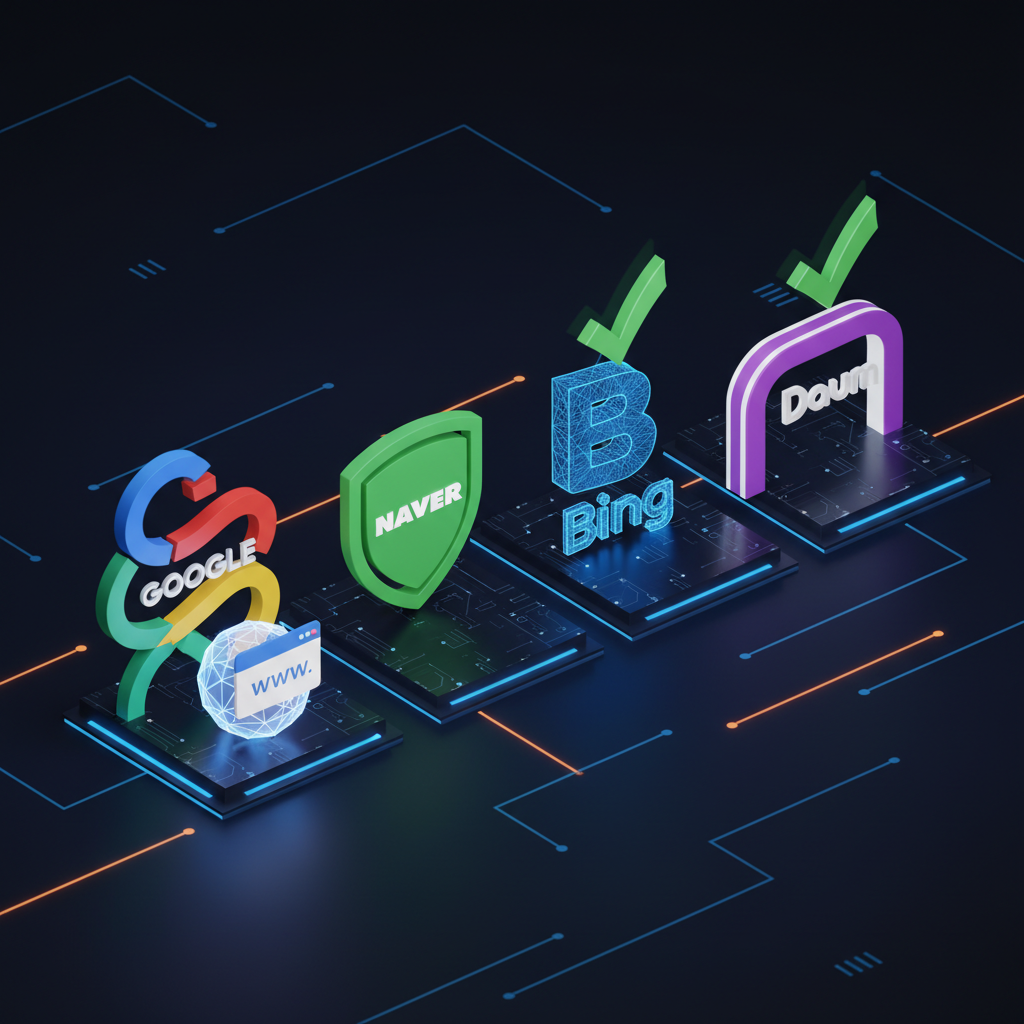
Time to tell search engines “I’m here!” Four registrations needed:
- Google Search Console — Add property → DNS verification → Submit sitemap
- Naver Search Advisor — Register site → HTML meta tag verification
- Bing Webmaster Tools — Register site → URL submission
- Daum Webmaster Tools — robots.txt verification code
Honestly, all I did was say “register these,” copy verification codes from each site, pass them to Claude Code, and click confirmation buttons. Inserting verification codes into WordPress, setting up Naver/Daum meta tags, updating robots.txt — Claude Code handled all of it.
Yoast SEO auto-generates the sitemap at prsm-studio.com/sitemap_index.xml. Submit this to search engines and they’ll crawl all listed URLs.
Claude Code also submitted 32 URLs via IndexNow — an instant indexing protocol supported by Bing, Yandex, and Naver. I didn’t even ask for this. It decided on its own that the new domain needed immediate search engine notification.
Result: Search Visibility Begins
Current status after domain change:
- ✅
prsm-studio.comworking - ✅ Google/Naver/Bing/Daum all registered
- ✅ Sitemap submitted
- ✅ 32 URLs submitted via IndexNow
- ✅ Old address 301 redirects
- ✅ Daum search confirmed (Daum was the only engine that indexed .ts.net)
- ⏳ Google/Naver indexing pending (typically days to 2 weeks)
Fun fact: Daum indexed the .ts.net address all along — the only engine out of four. But Daum alone isn’t enough in Korea. Google and Naver are where the real traffic comes from. My n8n Blog Indexing Monitor checks indexing status every 12 hours and sends Telegram alerts.
Two lessons learned. First, free has its reasons. Tailscale Funnel is free and convenient, but it’s missing a fundamental blog feature: search visibility. $10.44/year completely solved that.
Second, AI really does handle everything. Here’s everything I personally did in this episode:
- Bought domain on Cloudflare (entered credit card)
- Clicked ‘Create Tunnel’ on Cloudflare dashboard
- Copied verification codes from search engine sites + clicked confirm
wp-config modifications, 636 database URL replacements, .htaccess redirect rules, SEO meta tag insertion, n8n workflow updates, IndexNow batch submission, cache debugging — 100% of the technical work was done by Claude Code. A non-coder doing domain migration? In the AI era, it’s possible.
Next Episode Preview
Next up: automatic web meeting transcription + AI meeting minutes. Join Google Meet, Zoom, or Teams calls, automatically convert speech to text, and have AI organize key points and action items — a story about how meeting minutes are already done when the meeting ends.
Thanks for reading! Stay tuned for the next episode!
This post was also written by AI (Claude Code). The domain migration, this blog post — all done by AI. I just said “do it.”